Copy, edit, or delete a collection

You can copy, edit, or delete a collection to modify its contents or remove it.

Notes:

  • A collection can only be edited or deleted by its owner or user with the appropriate permission.
  • Users with Administrator, Instructor, Faculty, or Staff roles can edit or delete any collection created within the district.

  1. Find and open the collection you want to work with.
  2. On the collection image, do any of the following:

    If you want to...Then...

    Copy

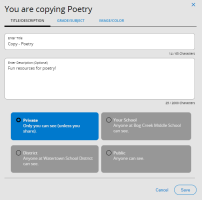
    1. Select More Options icon. > Copy. A pop-up appears.

    2. Make any edits, and then click Save.

    Note: A collection's cover image will not copy over to a new collection. You will have to add the image again, or upload your own custom image.

    Edit
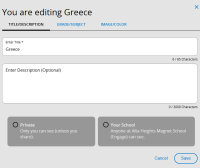
    1. Select More Options icon. > Edit. A pop-up appears.

      Edit a collection pop-up.

    2. Make any edits, and then click Save.

    Note: For more information, click here.

    Delete


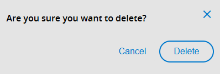
    1. Select More Options icon. > Delete. A message appears.

      Delete a collection pop-up.

    2. Click Delete.

    Important: Deleting a collection is permanent. It cannot be undone.